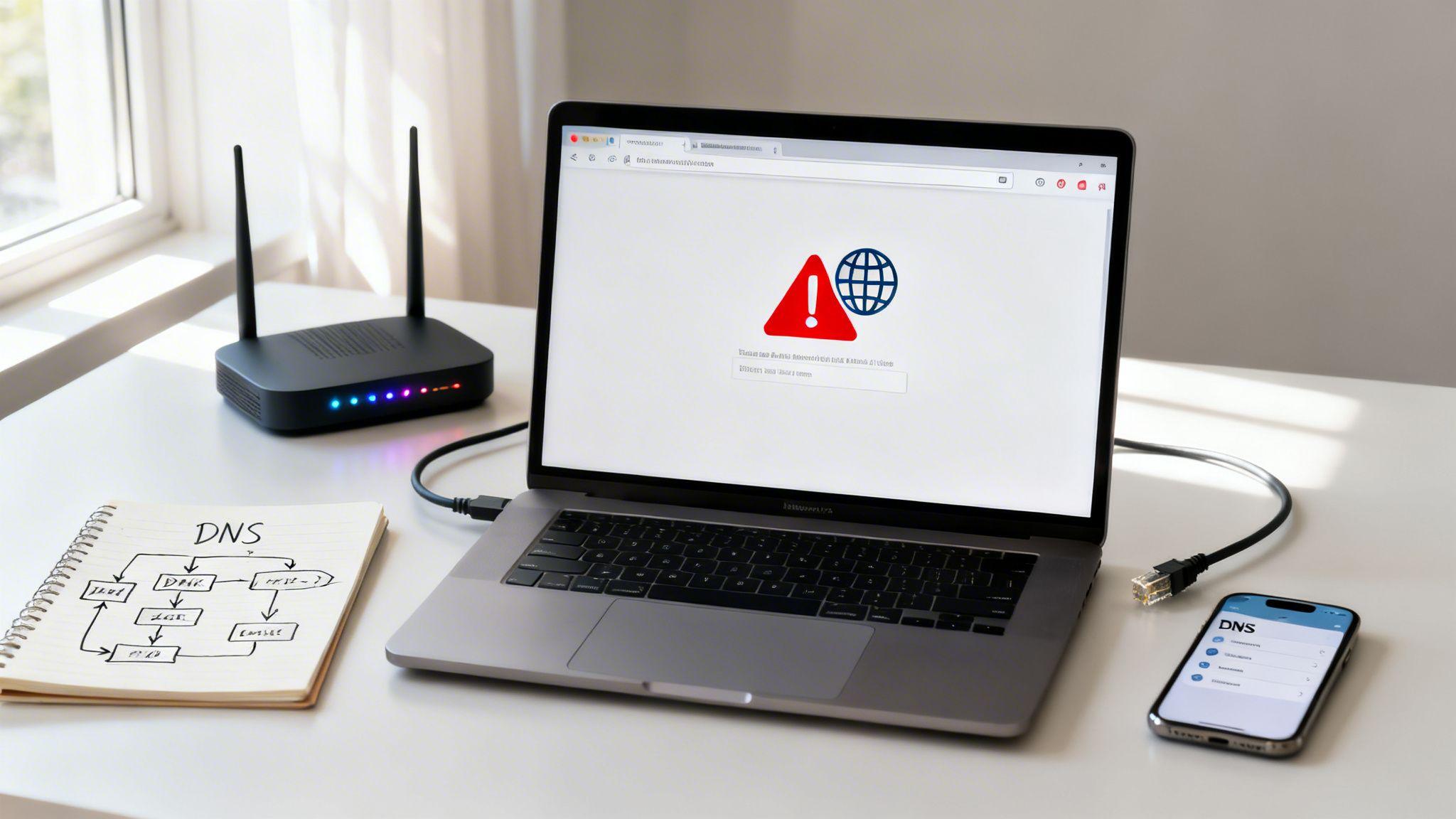
You launch your site, copy the web address into your browser, and expect that small moment of relief. Instead, you get domain not found.
That message feels bigger than it is. Many small business owners read it and assume the whole website is gone, the hosting failed, or something expensive broke overnight. Usually, it’s a naming and connection problem, not a destroyed website.
To illustrate, your website may still exist, but the internet can’t match your domain name to the right destination. If you recently connected a custom domain, changed hosting, or updated settings at your registrar, you’re in the exact situation where this error tends to appear.
Why Your Website Suddenly Says Domain Not Found
A common version of this story goes like this. You build your site, connect a custom domain, tell a few customers, and then someone replies, “Your link isn’t working.”

That’s frustrating, but it usually helps to translate the error into plain English. Domain not found means the browser asked, “Where does this website live?” and didn’t get a usable answer.
The simplest way to think about it
Your domain is like the street address on a letter.
Your website files live somewhere else, on a server. The internet needs directions that connect the name people type to the place where the site lives. If those directions are missing, outdated, or incomplete, delivery fails.
Practical rule: A domain not found error usually points to a lookup problem, not a writing, design, or content problem on your site.
That distinction matters. If your pages were badly designed, people would still reach them. If your contact form was broken, the site would still load. But when the domain itself can’t be found, the issue sits earlier in the chain.
Why this happens right after setup
This error often appears during moments of change:
- You just connected a new custom domain
- You changed hosting or registrar settings
- You updated records and expected instant results
- Your domain registration expired without you noticing
For a non-technical owner, all of those feel the same from the outside. You type the address and nothing loads.
That’s why the best response is calm, not random clicking. Start with the easiest checks first. Then move to the domain settings only if the simple stuff doesn’t solve it.
Start Here Quick Fixes You Can Try in 60 Seconds
Before you open any dashboards, do a few fast checks. These solve more problems than people expect, especially when the issue is local to one device or one network.

The fastest checks
- Re-type the domain by hand
A missing letter, extra dot, or wrong ending can trigger the same error. Check both the main domain and the version with or without “www.” - Open the site in a private browsing window
This avoids old browser data that may still be hanging around. - Try another device
Use your phone, tablet, or another computer. - Try another network
Turn off Wi-Fi on your phone and test the site on mobile data. If it works there but not on your office network, the problem may be local.
Clear out stale local information
Browsers and devices remember old address lookups for speed. That’s helpful until those remembered details are wrong.
Use this quick mini-checklist:
- Refresh hard: Reload the page more than once.
- Clear browser cache: Remove stored site data and reopen the browser.
- Restart your router: This can help if your home or office network is hanging onto outdated DNS responses.
If you think the issue may be tied to the network itself, these Wi-Fi troubleshooting tips are a useful companion because they walk through basic connection resets in plain language.
What your quick test results mean
| What you see | What it usually suggests | What to do next |
|---|---|---|
| Site works on phone data, not office Wi-Fi | Local network or cached lookup issue | Clear cache, restart router, retry later |
| Site fails on every device and network | Domain or DNS issue | Check registrar and DNS settings |
| Site works for one person but not another | Different networks seeing different data | Wait, then verify DNS settings |
| Only one version works | One domain variation isn't pointed correctly | Check redirect or DNS setup |
If the site works somewhere, that’s good news. It means the website may already be live, and the problem may only be how one device or network is trying to find it.
If none of these quick checks help, the next place to look is DNS. That’s where most first-time domain connection problems live.
Decoding DNS The Internet's Address Book
DNS stands for Domain Name System. It’s the system that connects a human-friendly web address to the server that holds your site.
If you’ve ever wondered why a domain can look correct in your browser but still not work, DNS is usually the answer.

What DNS does
When someone types your domain, their device asks DNS for directions. DNS replies with the information needed to reach the correct destination.
If you want a simple refresher on the basics, this guide on what a website domain is gives helpful context before you dig into record settings.
For troubleshooting, it helps to know three terms.
A records, CNAME records, and nameservers
A record
An A record points your domain to the server where the website lives.
If this is wrong, missing, or copied with a typo, the internet may not know where to send visitors.
CNAME record
A CNAME record points one name to another name.
A common use is making a version like “www” follow your main domain. If that record is missing, one version of your site may work while the other fails.
Nameservers
Nameservers tell the internet which DNS provider is in charge of your domain’s records.
Many people get tripped up at this point. They update a record in one dashboard, but the domain uses nameservers from somewhere else. So the changes were made in the wrong place.
The most confusing part of DNS isn't the record itself. It's knowing which company currently controls the live records.
That’s why you can log in, make what looks like the right edit, and still see no change.
Why changes don't show up right away
DNS propagation delays are a common cause of "domain not found" errors after a recent change. Depending on TTL values and resolver caches, updates may appear within minutes for some networks but can take up to 24-48 hours to propagate globally.
In plain language, some networks may see the new settings before others do.
That’s why one customer can reach your site while another still gets an error. Both can be telling the truth.
A plain-English example
Say you changed your domain settings this morning.
- Your phone’s network may already see the new version
- Your office internet may still see the old version
- A customer across the country may get a different result from both
That doesn’t mean your setup is failing. It may mean the update is still spreading.
How to avoid DNS guesswork
Use this short checklist when you’re unsure:
- Confirm who controls DNS: Check whether your registrar or your hosting platform manages the records.
- Review only the active zone: Don’t edit records in a panel that isn’t live for your domain.
- Wait before re-editing: Repeatedly changing settings during propagation can make troubleshooting harder.
- Compare the root and www versions: They may not be using the same records.
If you want a platform-specific walkthrough after you understand the basics, this Solo guide can help with the next layer of troubleshooting: https://blog.soloist.ai/how-to-fix-a-dns-error/
Is Your Domain Active Verifying Registrar Settings
Sometimes DNS looks wrong because the domain itself has a registration problem.
Your registrar is the company where you bought the domain. That might be GoDaddy, Namecheap, or another provider. If the registration isn’t active, your site won’t load no matter how clean the DNS records look.
Two things to check first
Log in to your registrar account and look for these basics:
- Expiration status
If the domain expired, it may stop resolving until renewal is completed. - Domain status or lock settings
Some domains show a transfer lock or related status that can interfere with expected changes if you’re in the middle of moving services or updating settings.
A public WHOIS lookup can also help you verify whether the domain is active and whether the registration details look normal. You don’t need to understand every field. Focus on whether the domain appears current and registered.
What to do inside the registrar dashboard
Use this order:
- Open the domain management page.
- Confirm the domain is still registered and paid up.
- Check whether auto-renew is enabled.
- Review nameserver settings.
- Look for any recent changes made by you, a teammate, or a previous developer.
If you recently bought your domain and want the basic setup process explained in simpler terms, this Solo article is a useful reference: https://blog.soloist.ai/how-to-register-a-domain/
A domain can be perfectly designed, fully hosted, and still invisible if the registration has lapsed.
Signs the registrar is the primary issue
| Sign | Likely meaning |
|---|---|
| You can't find the domain in your account | It may be under another login or another registrar |
| Renewal notices were missed | The domain may have expired |
| DNS edits don't seem to “stick” | You may be editing records in the wrong provider or dealing with a domain status issue |
If everything looks active at the registrar, the next step is making sure the domain is connected to your website platform the right way.
Connecting Your Domain to Solo AI Website Creator Correctly
Generic advice often falls short in this area. A non-technical user usually doesn’t need every DNS option explained. They need to know which settings should match, where to enter them, and what not to change.

According to this guide on fixing domain not found or DNS errors, for users of AI website creators, custom domain connection failures often stem from nameserver mismatches between the platform's hosting and the user's registrar. These issues are cited in 70% of small business DNS complaints on registrar forums.
The mistake people make most often
They mix two different methods:
- changing nameservers
- editing individual DNS records
Usually, your platform will want one method or the other for a specific setup. If you change nameservers and also keep editing old records in the registrar panel that no longer controls DNS, the edits won’t help.
A simple way to connect the right way
Use this sequence and don't skip around:
Check the connection instructions in your website dashboard
Look for the exact domain connection details your platform provides. Copy values carefully.
Identify who currently controls DNS
This is the key question:
- Are your nameservers pointing to your registrar?
- Or are they pointing to another DNS provider?
That answer determines where changes must be made.
Match the method to the instructions
If the instructions say to update nameservers, do only that.
If the instructions say to add or edit specific DNS records, do that in the active DNS zone and leave nameservers alone.
What to compare before saving changes
| Item to compare | What you’re checking for |
|---|---|
| Main domain | Is the root domain connected as instructed |
| www version | Does it point where the platform expects |
| Nameserver location | Are you editing settings in the company that controls DNS |
| Old records | Are outdated entries still pointing somewhere else |
A practical example of confusion
A business owner buys a domain at a registrar, then creates a site elsewhere. They open the registrar dashboard, see a DNS page, and start editing records. Later they learn the nameservers were already switched to another provider, so that registrar DNS page wasn’t live anymore.
Nothing they entered was technically “wrong.” It just wasn’t entered in the place the internet was using.
That’s why a domain can stay unreachable even when the owner is trying hard and following screenshots carefully.
Keep your changes clean and trackable
Before you edit anything, write down:
- What you changed
- Where you changed it
- When you changed it
- What the old value was
That simple note saves time if you need support later.
If you’re working through a custom domain setup with a website platform, this guide can help you compare your current setup against the expected one: https://blog.soloist.ai/how-to-connect-domain-to-website/
In setups like this, Solo AI Website Creator includes domain connection and verification steps in the dashboard, which helps you confirm whether the custom domain is pointing correctly after changes are made.
If you're not sure whether to change nameservers or records, stop and verify that first. Most wasted troubleshooting time starts with changing the right thing in the wrong place.
Verifying Your Fix and Preventing Future Errors
Once you’ve made a correction, you need proof that it’s working. Otherwise, it’s easy to keep changing settings and make the situation harder to untangle.
How to check if the fix is taking effect
Start with an online DNS checker such as WhatsMyDNS.net. It lets you see whether different locations are finding your domain correctly.
You can also test your site from:
- Your normal browser
- A private window
- Your phone on mobile data
- A second network if available
If results differ, that usually means the update is still settling across different networks.
What a successful fix often looks like
You may not get one dramatic all-clear moment.
Instead, you may notice a sequence like this:
- The site starts loading on one device.
- The www or non-www version begins working.
- More networks begin resolving correctly.
- The error disappears for everyone.
That gradual improvement is normal.
Don't forget analytics
A domain issue doesn't just affect visitors. It can affect measurement too. According to Google's Urchin documentation, a "domain not found" error can disrupt Google Analytics tracking, and for small businesses using Solo's GA integration, this can lead to 30-50% unresolved IPs in reports, skewing data on contact forms and SEO performance: https://support.google.com/urchin/answer/28363?hl=en
If you had a domain problem during a campaign, launch, or client promotion, review your analytics with that in mind. Missing or distorted data may not mean customer interest dropped. It may mean the reporting chain was incomplete during the outage.
A prevention checklist worth keeping
Use this before your next domain change:
- Turn on auto-renew: This protects you from accidental expiration.
- Keep a DNS note: Save current records before editing anything.
- Make one change at a time: Multiple edits at once create confusion.
- Check both domain versions: Test the root domain and the www version.
- Schedule changes carefully: Avoid making domain edits right before a launch, ad campaign, or event.
- Know who to contact: Keep your registrar support and hosting support details handy.
When to stop troubleshooting alone
Contact support when:
- The domain is active but still won’t resolve after a reasonable wait
- You’re unsure which provider controls DNS
- Your settings look correct but verification still fails
- You suspect an account access, lock, or ownership issue
When you contact support, send a short summary:
| Include this | Why it helps |
|---|---|
| Your domain name | Confirms the exact site being checked |
| Registrar name | Tells support where registration lives |
| What changes you made | Helps avoid repeating steps |
| When you made them | Helps support judge propagation timing |
| Screenshot of current DNS settings | Lets support spot mismatches quickly |
Good support requests are short, specific, and factual. That usually gets faster answers than “my site is broken.”
If you want a simpler way to launch and manage a business website without juggling as many moving parts by hand, Solo AI Website Creator gives you a way to create a site, connect a custom domain, and manage booking, contact, and analytics features from one place.
What does a domain not found error usually mean?
It usually means the browser asked where the website lives and did not get a usable answer. The problem is typically with domain lookup, DNS, or registration status rather than your page design, content, or hosting files disappearing.
What are the first troubleshooting steps to try?
Re-type the domain carefully, including checking both the root domain and the version with or without “www.” Then test in a private window, try another device, switch to another network such as mobile data, clear browser cache, and restart the router to rule out stale local lookup data.
Why does the site work on one network or device but not another?
Different devices and networks can temporarily see different DNS information. If the site works on phone data but not office Wi-Fi, that often points to a local network cache or outdated DNS response rather than a broken website.
Which DNS settings matter most when a custom domain will not load?
The main settings to review are the A record, the CNAME record for entries like “www,” and the nameservers. A missing or incorrect A record can stop the main domain from resolving, a bad CNAME can break one version of the site, and wrong nameservers can send you to the wrong DNS dashboard entirely.
Can an expired domain cause a domain not found error?
Yes. A website can be fully built and properly hosted, but if the domain registration expired, the site may stop resolving until the renewal is completed. Check the registrar account for expiration status, auto-renew, nameservers, and any recent account changes.
What is the most common mistake when connecting a domain to a website platform?
The most common mistake is mixing nameserver changes with record edits without confirming which provider controls the live DNS zone. If nameservers point to another DNS provider, edits made in the registrar’s old DNS panel will not affect the live domain.