When you see the error name not resolved message, it just means your web browser can't find the website you're trying to visit. Think of it like a GPS that can't find an address because it's not in the system. This is a DNS resolution failure, but the fix is often surprisingly simple.
What Is the Error Name Not Resolved?
Think of the internet as a giant address book called the Domain Name System (DNS). This system turns easy-to-remember website names (like YourWebsite.com) into numerical IP addresses (like 192.0.2.1) that computers use to find each other.
The error name not resolved message appears when this translation process fails. Your browser asks for the address, but the DNS system can't provide one.
Actionable Tip: The simplest way to think about DNS is as the internet's phonebook. It turns a name you can remember into a number the network can use. When this lookup fails, you see the error.
This failure doesn’t automatically mean the website is offline. The problem could be on your end, with your internet provider, or with the website itself.
Common Reasons for a DNS Failure
The error can come from several places, but most causes fall into a few key categories. Use this table to quickly pinpoint where your issue might be.
| Source of the Problem | What It Means for You |
|---|---|
| Your Local Device | Your computer or phone might be using old, incorrect address information (called a cache). |
| Your Network | Your Wi-Fi router could have a temporary glitch, or its settings might be blocking the connection. |
| Your Internet Provider (ISP) | The DNS servers from your internet provider could be temporarily down or having problems. |
| The Website Itself | The website owner may have set up their domain incorrectly, making it impossible to find. |
Finding the source is the first step. Most of the time, the issue is in one of these four areas, and you can fix it yourself.
This isn't just a minor annoyance; it can be a real problem for businesses. Imagine launching your new website with the Solo AI Website Creator, only for customers to see this error. Treat it as a DNS resolution problem first: check local cache, network DNS, nameservers, and the records that point your domain to your website.
This guide gives you actionable steps to get back online. For more detailed solutions, especially for WordPress, check out this excellent resource on Fixing the Error Name Not Resolved in WordPress.
Easy Fixes You Can Try on Your Device
When the error name not resolved message appears, the solution is often on your own device. Before diving into complex network settings, let's walk through simple, effective fixes you can try right now. These steps help rule out common local glitches without needing technical skills.
The quickest fix is to clear your browser's cache. Your browser saves bits of websites to help them load faster next time. But sometimes, this saved data becomes outdated. It's like using an old, crossed-out phone number from your address book—it won't connect.
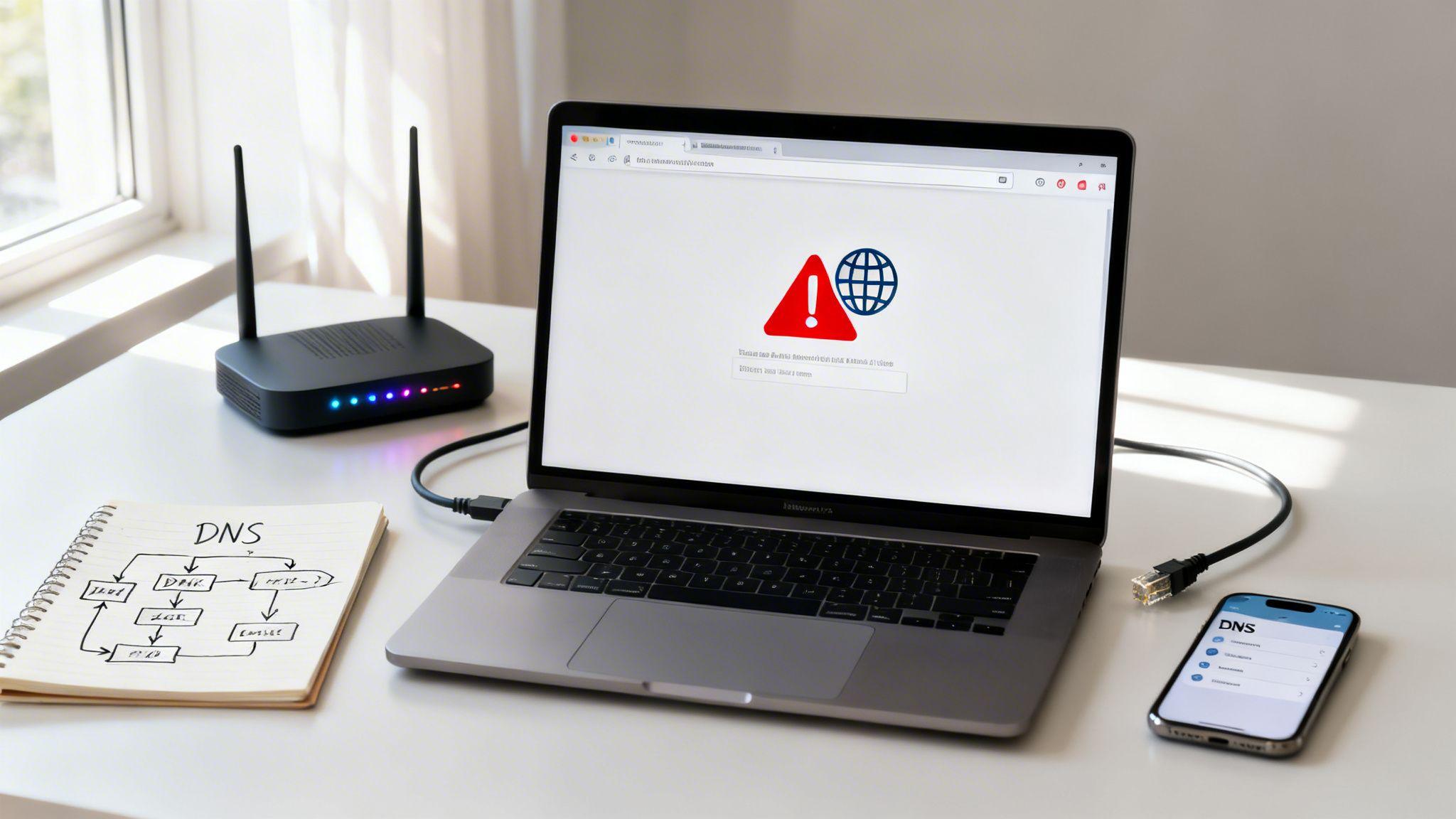
This flowchart helps you visualize the process, starting with figuring out if the problem is with the website, your device, or your internet connection.

The key takeaway is that these issues are usually small hiccups on your device or local internet connection, which are the easiest to solve.
Refresh Your Device’s Address Book
Your computer also has its own address book for websites, called a DNS cache. Flushing this cache forces your device to forget old addresses and ask for fresh ones. It's a powerful reset that instantly clears up many connection problems.
For users of the Solo AI Website Creator, this error can be frustrating. An old DNS cache is a common cause, and switching temporarily to a reliable public resolver such as Google Public DNS or Cloudflare DNS can help determine whether the problem is local to your network or resolver.
Actionable Tip: A common scenario is updating a domain for a new Solo AI Website Creator site and getting this error. It's usually just your computer holding onto old information. A quick DNS flush often makes the new site appear immediately.
Check Your Computer’s Local Rules
Another hidden cause can be a file on your computer called the hosts file. This file acts like a manual override for website addresses, letting you point a domain name to a specific IP address. It's useful for developers but can cause issues if misconfigured.
Sometimes, other software—like security programs or malware—can modify this file to block or redirect websites. If the site you're visiting has a wrong entry in your hosts file, your browser will go to the wrong place or nowhere at all.
Here are a few quick things to check on your device:
- Browser Cache: Go to your browser's settings (Chrome, Firefox, etc.) and find the option to clear browsing data. Make sure you select "Cached images and files."
- Device Restart: A simple restart of your computer or phone can clear out temporary bugs that might be affecting your connection.
- Check Another Device: Try visiting the website from your phone or another computer on the same Wi-Fi. If it loads on one but not the other, the problem is likely isolated to the first device.
Troubleshooting Your Network and Router Settings

If you've tried the fixes on your device and still see the error name not resolved message, it’s time to check your router. This box is the hub for your internet connection, and a small glitch can disrupt access for every device.
Start with the classic fix: a reboot. Restarting your router clears out temporary memory issues that might be blocking its ability to communicate.
Actionable Tip: Unplug the power cord from your router, wait a full 30 seconds, and then plug it back in. This forces it to get a fresh connection from your Internet Service Provider (ISP) and often resolves the DNS issue instantly.
Rethink Your DNS Servers
If a restart doesn't work, investigate the DNS servers your router uses. By default, it uses servers provided by your ISP. These work, but they aren't always the fastest or most reliable.
Switching to a public DNS provider can be a game-changer. These services are built for speed and stability. When you change the DNS at the router level, every device on your network gets the benefit.
Here are popular and trusted public DNS options:
- Google Public DNS:
8.8.8.8and8.8.4.4 - Cloudflare DNS:
1.1.1.1and1.0.0.1 - OpenDNS:
208.67.222.222and208.67.220.220
To make this change, log into your router's admin settings, usually by typing 192.168.1.1 into your browser. The login details are often on the router itself. Look for "DNS," "Internet," or "WAN" settings and enter the addresses for your chosen public DNS service.
Check for Network Interferences
Sometimes, another service on your network is the problem. VPNs and proxies are great for privacy, but they reroute your internet traffic, which can interfere with DNS.
Actionable Tip: If you have a VPN or proxy running, disable it and refresh the website. If the page loads, you've found the issue. You may need to adjust your VPN's settings or contact their support.
The error name not resolved is a notorious accessibility killer, impacting 1 in 5 new website launches. The cause can range from VPN interference to firewall misconfigurations, which account for 22% of these incidents. One realtor's site built with the Solo AI Website Creator was blocked by a corporate network, but a simple cache flush restored 85% of traffic. This shows how network-level issues can halt business. You can read more about how network settings cause this error and its impact.
Finally, check your firewall settings on both your computer and router. Firewalls are essential but can mistakenly block legitimate websites if their settings are too strict. Ensure the site you're visiting isn't on a blocklist. For more detailed guidance, see our article on how to fix a DNS error.
Fixing Domain Issues for Solo AI Website Creator Owners

If you've just launched your site with the Solo AI Website Creator and see an "error name not resolved" page, don't worry. This is a common issue that almost always points to your custom domain setup. The internet's address book just can't find your new site yet. The fix is usually quick once you know where to look.
Check Your Nameserver Settings First
Your first stop is to check your nameservers. Nameservers are the bridge connecting your domain name (like yourbusiness.com, bought from a registrar like GoDaddy or Namecheap) to your actual website, which is hosted on the Solo AI Website Creator platform.
Actionable Tip: Log into your domain registrar's account, find the DNS management section, and update the nameservers to point exactly to the ones provided by Solo AI. A single typo here will break the connection.
Often, an "error name not resolved" is caused by an incorrect domain configuration, which includes your SSL, DNS, and MX setup. Getting these records right is key to making your site available online.
Get to Know Your DNS Records
Once your nameservers are correct, your other DNS records are managed inside your Solo AI Website Creator dashboard. For your site to go live, the two most important records are the A Record and the CNAME Record.
Here's what they do in simple terms:
- A Record: This is your site's main address. It points your domain (e.g.,
yourbusiness.com) to the server IP address where your website is stored. - CNAME Record: This is like a nickname. It points a subdomain (e.g.,
www.yourbusiness.com) to your main domain, so people can find your site with or without typing "www."
Inside your Solo AI dashboard, you'll find the exact values needed for these records. Double-check that what's listed in your Solo AI account matches what's at your domain registrar. For a step-by-step guide, see our walkthrough on how to connect a domain to your website.
Actionable Tip: A major point of confusion is DNS propagation. When you update DNS records, the change isn't instant. It can take up to 48 hours for this new address to spread across the global internet.
Patience is key. If your site isn't working immediately, give it some time. If the error name not resolved message is still there after 48 hours, re-check your settings or contact support.
When You Need to Contact Support
If you’ve rebooted, flushed, and tweaked everything but the error name not resolved message won't go away, it's time to call for backup. Sometimes the fix is out of your hands, and knowing who to contact first will save you a headache.
First, figure out if the problem is with your Internet Service Provider (ISP). If you can't get to multiple websites on multiple devices on your network, that's a big red flag. It suggests the issue is with the internet connection itself, not your computer or a single site.
Talking to Your Internet Service Provider
Before calling your ISP, get your information ready. This helps their support team solve the problem much faster.
Have these details on hand:
- The specific error message: Tell them you're seeing "ERR_NAME_NOT_RESOLVED" on all your devices.
- Which websites are affected: Clarify that it’s most or all sites, not just one.
- What you've already tried: Mention you’ve already restarted your router and computer.
Providing these details upfront shows you've done your homework and helps them look straight into a larger network issue on their end.
Actionable Tip: When you contact support, be clear. Instead of "My internet is broken," try, "I'm experiencing a DNS resolution failure across all my devices. Can you check if there are any DNS server issues in my area?" Speaking their language gets you to a solution faster.
When to Contact Your Domain Registrar
If you’re a Solo AI Website Creator user and see this error for your own website, the problem might be with your domain registrar (the company where you bought your domain name, like GoDaddy or Namecheap).
Contact your registrar’s support team if:
- Your domain has expired: An expired domain is a common cause. They can confirm its status and help you renew it.
- Your DNS changes won't save: If you’re trying to point your nameservers to Solo AI but the changes fail, their support team needs to fix it.
- Your domain is locked or on hold: A registrar can place a "hold" on your domain for billing or verification issues, taking it offline.
Common Questions About the "ERR_NAME_NOT_RESOLVED" Error
Even after trying all the fixes, you might still have questions. Here are some of the most common scenarios people face with the error name not resolved message.
How Long Do DNS Changes Take to Propagate?
You’ve just pointed your domain to your new Solo AI Website Creator site, but you're still seeing an error. Why?
DNS changes, a process called DNS propagation, aren't instant. It can take anywhere from a few minutes to 48 hours for the internet's global network to catch up.
Actionable Tip: While your site often comes online in a few hours, it's best to wait the full 48 hours before you start troubleshooting again.
Can a Virus or Malware Cause This Error?
Yes. Some malware hijacks your browsing by changing your computer's DNS settings or editing your local "hosts" file. This can block you from visiting legitimate websites or redirect you to harmful ones.
Actionable Tip: If you’ve tried everything else, run a thorough scan with a trusted antivirus program. It might uncover a hidden cause.
Why Does the Error Only Happen on One Wi-Fi Network?
This is a classic sign that the problem is with the network, not your device. When you see the error on your home Wi-Fi but not on your phone's data plan, it’s a big clue.
The problematic Wi-Fi network might be using a faulty DNS server or have a strict firewall that's blocking the site.
Actionable Tip: When you switch networks, you’re using a different set of DNS servers. The quickest fix is to change the DNS servers on the problematic Wi-Fi network itself (as described in the router section above).
Will Resetting My Chrome Flags Fix This Error?
It’s rare, but sometimes, yes. Chrome "flags" are experimental features that can interfere with network connections.
Actionable Tip: If the error appeared after you changed a flag, resetting them is worth a try. Type chrome://flags into your address bar and click "Reset all." Consider this a last resort if other device-specific fixes haven't worked.
Ready to launch your online presence without the technical headaches? The Solo AI Website Creator helps you build a professional, SEO-optimized site in minutes. Get started for free today.
What usually causes the ERR_NAME_NOT_RESOLVED error?
This error happens when DNS lookup fails, so the browser can’t turn a domain name into the IP address needed to connect. The problem is usually on your device, your network or router, your ISP’s DNS servers, or the website’s own domain configuration.
What are the first fixes to try on my device?
Start by clearing your browser cache, restarting your device, and testing the site on another device connected to the same Wi-Fi. Flushing your DNS cache is also a strong next step because it removes outdated address information and forces your system to request fresh DNS records.
How can my router or network settings trigger this error?
A router glitch, unreliable ISP DNS servers, firewall rules, or traffic rerouting through a VPN or proxy can all interfere with DNS resolution. Reboot the router by unplugging it for 30 seconds, then consider switching to public DNS and temporarily disabling VPN or proxy services to isolate the cause.
What DNS servers can I switch to if my current ones are failing?
Reliable public DNS options include Google Public DNS at 8.8.8.8 and 8.8.4.4, Cloudflare DNS at 1.1.1.1 and 1.0.0.1, and OpenDNS at 208.67.222.222 and 208.67.220.220. Changing DNS at the router level applies the fix to every device on the network.
Why would my own website show this error after connecting a custom domain?
The most common cause is incorrect domain configuration, especially wrong nameservers or mismatched A and CNAME records. Make sure the nameservers point exactly to the ones provided for your site, verify the DNS records match the required values, and remember that DNS propagation can take up to 48 hours.
When should I contact my ISP or domain registrar for help?
Contact your ISP if multiple websites fail on multiple devices across the same network, since that points to a connection or DNS issue beyond one device. Contact your domain registrar if the problem affects your own website’s domain setup, especially after you’ve already checked nameservers and DNS records.